Jamworks is an AI-powered note-taking and learning platform designed to help students capture, organize, and better understand lecture content. It combines live transcription, AI-generated notes, summaries, highlights, and personalized study tools to turn lectures into accessible learning materials.
Helpful Resources
For videos and walkthroughs:
- Jamworks Student Onboarding: Student Onboarding – Jamworks AI Note Taking App
- Jamworks AI Assistant: How-to guide
- Key Points: How to guide | Jamworks Help Center
- Video Guides – Jamworks
- Getting started guide | Jamworks Help Center
Getting Started: Setup & Installation
Step 1: Activate your account
Check your UMBC email (Inbox or Spam folder) for your Jamworks invitation. Click the link inside to activate your account.
Step 2: Download the Jamworks App
To access AI-generated notes, flashcards, and summaries, download the Jamworks app for your device:
- Mac Intel
- Mac M1/M2/M3
- Windows
- iOS / Android mobile app
Step 3: Record Your Next Class
Open the app and start recording to automatically generate:
- Key points
- Flashcards (JamQuiz)
- Summaries
- Accessibility‑friendly study materials
Using Jamworks on a Phone
If you’re using Jamworks on your iPhone or Android device, all you need to do is download the Jamworks app from the App Store or Google Play. There’s no need to install anything else.
Please note: When using Jamworks on your phone, you will only be able to use the audio recording feature. This is typically sufficient for in-person classes, where you can use your phone to capture the lecture audio.
If you have a virtual or online class, please use the desktop/laptop version of Jamworks instead. The desktop version allows you to use the screen and microphone capture functions, which are necessary to capture your online class. The mobile app does not support these functions, so you will not be able to capture your virtual class properly using your phone.
Using Jamworks for In‑Person Lectures
Jamworks helps you capture essential moments whether you attend class in person, remotely, or watch later.
Quick Start
Tap “Audio only” option to begin recording your lecture’s audio
Lecture Capture Tools
Jamworks gives you 3 powerful buttons to capture content while listening.
1. Highlight (Middle Button)
Use this for longer, important topics.
- Tap to start capturing an important explanation.
- Leave it running as long as the topic continues.
- Tap again to end the clip.
2. Point of Interest (Right Button)
Captures an instant 10‑second snippet.
- Perfect for key statements, definitions, or important slides.
- Great when your instructor moves quickly.
3. Trackback (Left Button)
Perfect when you realize something is important after the instructor has already started explaining.
- Tap to go back in 15‑second increments.
- Jamworks will start your recording from earlier, so you never miss key material.
Using Jamworks for Online Lectures
Jamworks works seamlessly with virtual classes (Webex, Zoom, Teams, etc.).
Quick Start for Online Classes
Choose the “Screen and Mic Function” to begin recording the material displayed on your screen. Keep your instructor’s slides or video in view so the Jamworks desktop recorder can capture visuals.
Capture Tools During Online Lectures
Keep the Jamworks widget beside your lecture window.
Highlight Button
Capture longer explanations.
Point of Interest
Grab 10‑second instant clips.
Trackback
Jump back in 15‑second segments to capture moments you didn’t know were important at first.
Jamworks: AI Study Tools
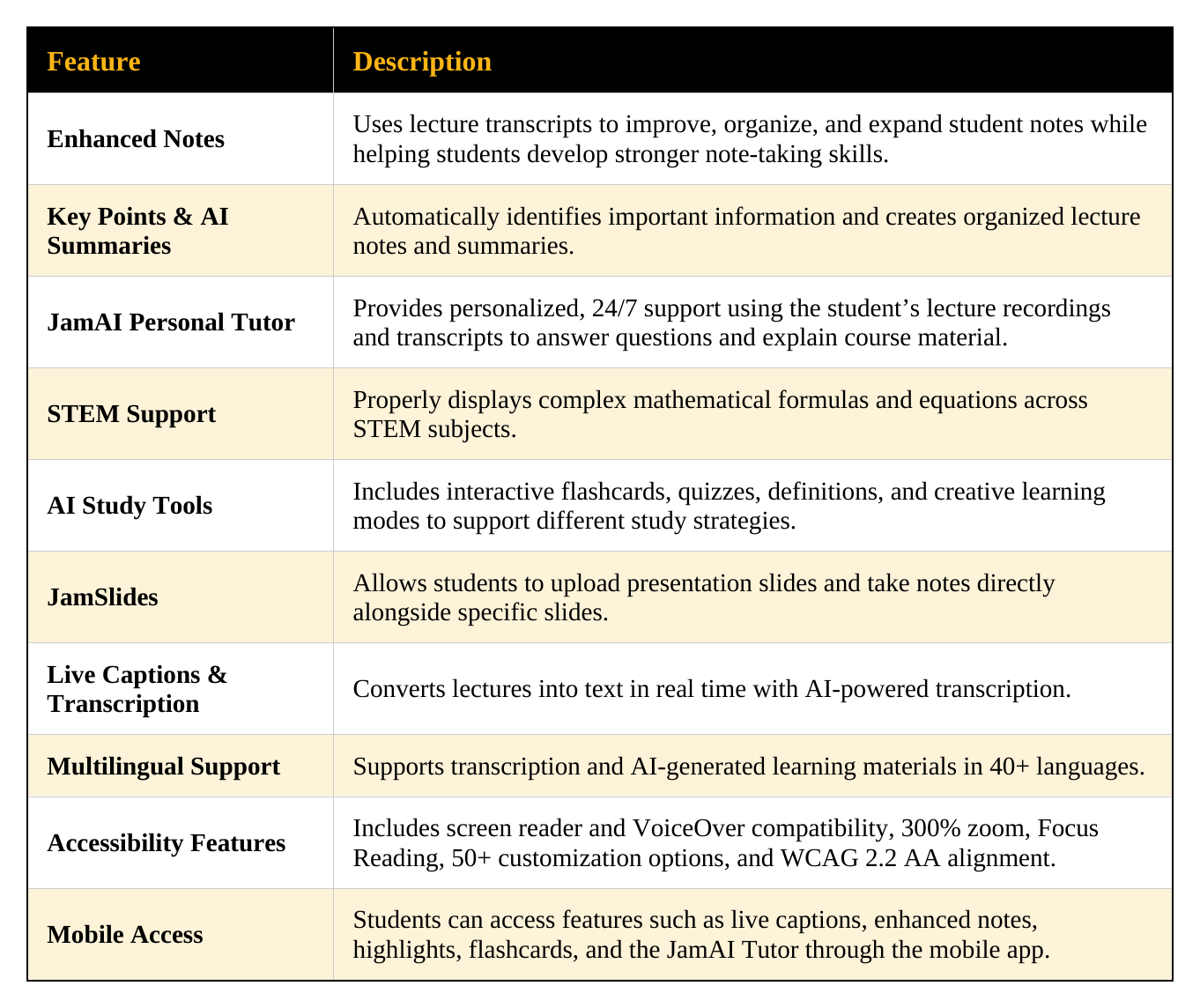
Once you record your class, Jamworks automatically generates study materials.
Key Features
• Key Points
Automatically identifies and highlights the most important parts of the lecture.
• Flashcards (JamQuiz)
Creates study questions and answers based on your recordings.
• AI Summaries
Turns long lectures into short, clear summaries.
• Accessibility Adjustments
Options for:
- Dyslexia‑friendly fonts
- Visual contrast settings
- Adjustable playback speed
- Captioning and transcripts
• JamAI Chatbot
Ask questions about your lecture content (e.g., “Explain this concept,” “Create a study guide”).
JamAI Assistant: How to Use the Built-In AI Study Assistant
The JamAI Assistant is your on-demand learning companion inside Jamworks. It helps you get more out of your recordings by summarizing, simplifying, generating quizzes, and offering personalized study support.
What Is the JamAI Assistant?
JamAI helps you interact with your lecture content by:
- Summarizing recordings and highlighted moments
- Generating questions and answers for revision
- Providing definitions and explanations of concepts
- Creating flashcards, quizzes, analogies, and study notes
- Helping you study specific topics pulled from your lecture
How to Access the JamAI Assistant
1. Log Into Jamworks
- Go to the Jamworks website or open the app.
- Sign in with your student account.
2. Choose or Create a Recording
- Select an existing recording or start a new one.
- Once processed, Jamworks will break down the lecture into topics.
3. Open JamAI
- JamAI appears on the right side of the media player.
- Ask your own questions in the chat box or use pre-made prompts like “Quiz me” or “Simplify.”
What Can You Ask JamAI?
Examples:
- “Summarize this lecture in 3 bullet points.”
- “Explain what ‘cognitive dissonance’ means.”
- “Create flashcards from this lecture.”
- “Give me a multiple-choice quiz.”
- “What are the key differences between classical and operant conditioning?”
JamAI Built-In Prompts
- Quiz me: Creates custom quizzes based on the lecture.
- Simplify: Breaks down content into easier language.
- Creative Story: Turns concepts into a narrative so they’re easier to remember.
- Analogy: Explains difficult material with relatable comparisons.
- Emoji Quiz: Converts lecture content into emoji-based questions.
- Definitions: Gives clear explanations of key terms.
- Memory Aids: Offers strategies like mnemonics and recall techniques.
Tips for Using JamAI Effectively
- Be specific — targeted questions give better results.
- Use follow-up prompts to refine understanding.
- Name your recordings:
- Always rename your recordings so you can easily identify which class they belong to.
- Click into your recording and select the date shown in bold to rename it.
- Consider including the course name, lecture topic, and date.
- Use Google Chrome:
- If you’re accessing Jamworks through a web browser, Google Chrome works best.
- If you receive unusual error messages or Jamworks says your account cannot be found, try switching to Google Chrome.
- Use the desktop version for virtual classes:
- If you have a virtual or online class, use the desktop/laptop version of Jamworks.
- The mobile app cannot capture your computer screen.
- The desktop version allows you to use the screen and microphone capture functions needed for online classes.
- Download your study materials:
- You can download your transcripts, summaries, key points, and AI-generated quizzes.
- Download these materials if you prefer to print them or save them for later.
- Upload existing recordings:
- If you didn’t use Jamworks to record your lecture, that’s okay!
- You can upload an audio or video recording that was recorded using another application.
- You can also upload a recording if your professor provided a recorded lecture instead of holding class.
- Select “Upload Media” from the Jamworks recordings homepage.
- Stay on your class screen during virtual classes:
- When using the desktop version, Jamworks records your screen and microphone in real time.
- Keep your online class meeting or lecture open on your screen while recording.
- Do not switch to unrelated tabs or windows during the recording.
- For example, if you switch to Amazon while your class is running, Jamworks may record the Amazon page instead of your professor’s slides or online class.
- Before starting your recording, close unnecessary tabs and keep your virtual class visible on your screen.